


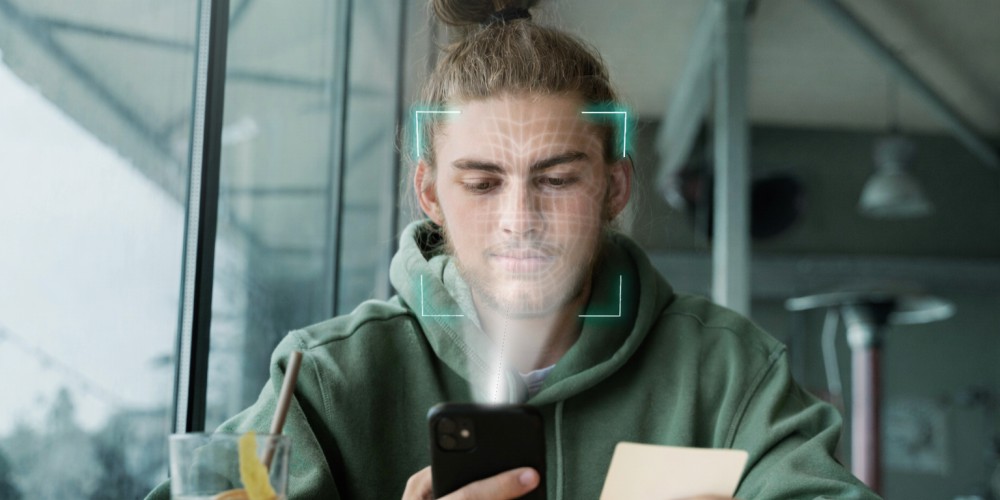
Face ID is one of those iPhone features you don’t appreciate until it suddenly stops working. One day you’re unlocking your phone instantly, approving Apple Pay, logging into apps with a glance, then after a drop (or after a screen replacement) you get hit with one of these messages:
- “Face ID is not available”
- “Move iPhone a little lower/higher” and it never locks on
- “Unable to activate Face ID on this iPhone”
- Face ID disappears completely from settings
And the worst part is this: most people waste hours trying random fixes because Face ID problems look like software issues, but very often they’re not.
This guide will help you quickly figure out whether your Face ID issue is:
- a simple settings problem,
- an iOS bug after update,
- a TrueDepth sensor obstruction,
- damage from a drop,
- or a Face ID related failure after screen repair.
Then I’ll show what is realistically fixable, what is usually not, and what you should do next (without guessing).
First: Why Face ID fails so easily after a drop
Face ID is not a single camera. It is a system called TrueDepth made up of multiple components working together, including:
- Infrared camera
- Flood illuminator
- Dot projector
- front-facing camera module pairing and sensor alignment
A small shift, crack, contamination, or torn flex cable can stop the system from working even if your iPhone screen looks fine.
That’s why you can drop your iPhone, have zero visible damage, and still lose Face ID completely.
The most common Face ID failure scenarios (what actually happens)
Let’s break down the “real life” situations that lead to Face ID problems.
Scenario 1: Face ID stopped working right after a drop
This is the classic case.
Symptoms usually include:
- Face ID prompts but cannot recognize
- “Face ID not available”
- camera still works fine but Face ID doesn’t
Most likely causes:
- TrueDepth component misalignment
- sensor damage (especially dot projector)
- flex cable damage from impact
- moisture exposure after crack
Scenario 2: Face ID stopped working after screen replacement
This one is extremely common in third-party repairs.
Symptoms:
- Face ID worked before repair
- after screen replacement, Face ID never works again
- sometimes even disappears from settings
Most likely causes:
- front sensor assembly not seated properly
- dust/adhesive blocking sensor path
- technician damaged a flex cable
- low-quality screen frame interfering with sensor window alignment
Important detail: screen replacement should not “require” removing the Face ID sensors, but sometimes shops remove or disturb the sensor assembly. If anything is slightly off, Face ID can fail.
Scenario 3: Face ID works sometimes, then fails randomly
Symptoms:
- Face ID works in the morning
- fails later in the day
- works after restart
Most likely causes:
- loose connection in front sensor flex
- small crack near the sensor area
- early-stage sensor failure
- intermittent moisture residue
This case is dangerous because users keep using the phone until it fully dies.
Step-by-step: Quick tests to figure out what type of Face ID problem you have

Before trying fixes, you need to identify the class of problem.
Test 1: Check if the front camera works normally
Open Camera > Front camera.
If the selfie camera:
- works fine,
- focuses normally,
- and doesn’t freeze,
That’s good. But Face ID can still fail even if the selfie camera works.
If selfie camera:
- is black,
- freezes,
- or crashes the camera app,
That points to broader front-camera assembly issues, not only Face ID.
Test 2: Look at the TrueDepth area under strong light
Use a flashlight and inspect the top notch / Dynamic Island area (or the top bezel area on older iPhones).
Look for:
- cracks near the top
- water marks
- dust inside the sensor cutout
- screen protector covering sensor area
- thick or cheap screen protector that blocks IR
Very common mistake: people install a privacy screen protector or thick tempered glass that partially blocks IR sensors. That can break Face ID or make it unreliable.
Test 3: Go to Settings and try “Set Up Face ID”
Settings > Face ID & Passcode
What happens here matters.
If you can enter setup but it fails with “Move iPhone a little higher/lower” endlessly:
- sensors can’t lock target
- usually obstruction or alignment issue
- sometimes internal damage
If it says “Face ID is not available” immediately:
- deeper sensor-level failure
- or the device cannot detect components
If Face ID settings are missing completely:
- hardware detection failure
- TrueDepth module not responding
Test 4: Try a forced restart (not a normal restart)
This sounds basic, but it’s worth doing the correct way.
- Press Volume Up
- Press Volume Down
- Hold Side button until Apple logo appears
If Face ID returns after forced restart:
- could be iOS bug, sensor glitch, or temporary module issue
- still not “fixed” long-term, but useful for diagnosis
The real causes (ranked from easiest to hardest)
Now let’s go through the causes and what each looks like.
Cause #1: Screen protector or debris blocking Face ID
This is the easiest and most overlooked.
Even if you think your protector is “clear,” Face ID uses infrared. Some protectors, especially privacy filters, block or distort IR.
Fix checklist:
- remove the screen protector completely
- clean the top front glass area with microfiber cloth
- remove dust from corners
Then try Face ID setup again.
If Face ID works after removing the protector:
- congratulations, you just saved yourself a repair bill
Cause #2: iOS bug or Face ID software corruption
This is less common than people think, but still possible.
Signs:
- Face ID fails after an iOS update
- no drop, no repair history
- intermittent failures
Fix checklist:
- update iOS to latest version
- reset Face ID and set up again
- reset network settings (not always needed)
- if still failing: reset all settings
Important: factory reset is the last resort, and it’s usually unnecessary for Face ID failures after a drop.
Cause #3: Face ID failure after screen replacement (alignment issue)
This is where you see many “almost working” symptoms.
Signs:
- Face ID fails right after repair
- screen edges don’t sit perfectly flush
- TrueDepth area looks slightly different
- Face ID tries to scan but cannot finish
This typically needs a technician to:
- open the phone,
- re-seat the sensor assembly,
- clean the sensor windows,
- ensure correct alignment.
This is very fixable when it’s just an alignment or contamination issue.
Cause #4: Water exposure (even small)
You don’t need to drop your phone in water to get Face ID damage.
A crack near the top, combined with rain, steam in bathroom, or spilled coffee can be enough.
Signs:
- Face ID fails after “nothing happened”
- phone had small crack near top
- you use it in humid environments
- issues started hours later
Water damage causes:
- corrosion on TrueDepth flex connections
- short circuits in sensors
- gradual failure that worsens over time
This is one of the fastest “go to repair shop now” cases because time matters.
Cause #5: TrueDepth flex cable damage after impact
This is the big one.
When an iPhone drops, internal components can shift slightly. The TrueDepth sensors are sensitive. Flex cables can develop micro tears.
Signs:
- Face ID is missing or not available
- setup fails instantly
- no software fix changes anything
If your iPhone took a hard drop and Face ID died the same day, this is highly likely.
If Face ID still fails, professional iPhone repair is the fastest way to confirm whether the TrueDepth system is damaged or just misaligned.
Cause #6: Dot projector / IR camera hardware failure
This is the most expensive and complicated case.
The dot projector is essential. If it fails, Face ID usually cannot be restored with simple adjustments.
Signs:
- Face ID not available no matter what
- even after software resets
- no response during setup
- often paired with previous impact
This is where professional diagnosis matters. Many shops guess, replace random parts, and waste your time.
The harsh truth: Can Face ID be repaired?

Here’s the clean answer, without sugarcoating.
Face ID CAN be repaired when:
- the problem is obstruction or screen protector
- sensors are misaligned after repair
- connectors are loose
- there is mild damage that can be reworked (advanced repair)
Face ID is OFTEN NOT repairable when:
- TrueDepth module is heavily damaged
- dot projector is dead
- internal components are permanently broken
- the phone has severe corrosion
Some iPhones will show “Face ID not available” permanently unless the TrueDepth system is repaired at board/sensor level (specialized micro-soldering work).
This is why you should diagnose early and avoid making it worse.
What NOT to do (these mistakes make Face ID repair worse)
If you want to keep your repair cost low, avoid these:
1. Don’t keep dropping and testing
Each impact can worsen connector/board issues.
2. Don’t use heat or hair dryer
People try to “dry the phone.” Heat can warp seals and damage sensors further.
3. Don’t keep reinstalling iOS blindly
If it failed after a drop, it’s almost never solved with reinstalling.
4. Don’t go back to the same shop and accept “it’s impossible”
Face ID repair quality depends heavily on technician skill and proper diagnostics.
What a professional Face ID diagnosis should include
If you bring your iPhone to a real repair shop, it should not be “guesswork.”
A proper diagnosis usually includes:
- inspection of TrueDepth sensor area
- testing Face ID setup response
- checking sensor flex seating
- checking for top glass crack alignment issues
- water damage check indicators
- internal inspection for corrosion around front sensors
In Vancouver, Face ID issues are very common because iPhones are used outdoors a lot in rain/humidity, and that multiplies sensor failure risk when there’s even a hairline crack.
The same structured troubleshooting approach used in cell phone repair helps avoid guessing and prevents unnecessary resets or data loss.
Is it worth repairing Face ID?
Yes, for most people it is, because Face ID controls:
- unlocking
- Apple Pay
- banking apps
- password autofill
- App Store payments
If Face ID is gone, the phone becomes annoying and loses resale value.
If the fix is:
- alignment / reseat / clean,
it’s absolutely worth it.
If the fix requires advanced TrueDepth repair:
- it depends on iPhone model and phone value
- but most of the time it’s still better than replacing the device
What you should do right now
If your iPhone Face ID stopped working:
- Remove screen protector
- Clean top sensor area
- Force restart
- Try Face ID setup
- If it fails after a drop or repair, stop wasting time and get it diagnosed
The biggest cost driver in Face ID repairs is delay. People keep using a damaged phone, moisture creeps in, corrosion spreads, and then what could’ve been a fix becomes “not repairable.”